
Preface#
Defining a Git setup that fits your own style—who could say no to that? Let’s give it a try.
Ignore Special Files#
Sometimes you must keep certain files in your Git working directory but you must not commit them—for example, config files that contain database passwords. Luckily, Git has considered this, and the solution is simple: create a special .gitignore file in the root of your Git working directory, then list the filenames (or patterns) you want to ignore. Git will automatically ignore them.
Conveniently, we don’t need to write .gitignore from scratch. GitHub has prepared templates for all kinds of projects—you just combine what you need and use them. You can browse all templates at gitignore ↗.
General principles for ignoring files:
- Ignore OS-generated files, like thumbnails.
- Ignore intermediate build artifacts and executables—i.e. if a file is generated from another file, it usually doesn’t need to be in version control, such as Java-compiled
.classfiles. - Ignore your own configuration files containing sensitive information, such as passwords or tokens.
Sometimes you try to add a file to Git but it won’t add because it’s ignored by .gitignore. If you really want to add it, you can force-add with -f:
$ git add -f App.class # git add -f <filename>Or you suspect the .gitignore rules are wrong and want to find which rule is causing the ignore; you can use git check-ignore:
$ git check-ignore -v App.class
.gitignore:3:*.class App.classGit tells you that line 3 of .gitignore is ignoring the file, so you know which rule to fix. But sometimes you write rules that exclude some files and then find that the .* rule excludes .gitignore itself, while App.class also needs to be added but is excluded by *.class. You can force-add with git add -f, but people with strong preferences may want to keep the ignore rules intact. In that case, add two exception rules:
# Exclude all hidden files that start with .
.*
# Exclude all .class files
*.class

# Do NOT exclude .gitignore and App.class
!.gitignore
!App.classThe syntax to exclude a specific file from ignore rules is !<filename>, so you just add the exceptions. Similarly, you can generate a .gitignore online via GitIgnore Online Generator ↗ and download it directly.
Final question: where should .gitignore go? Put it in the root of the Git repo. But a repo can also have multiple .gitignore files—each .gitignore affects its directory (and subdirectories).
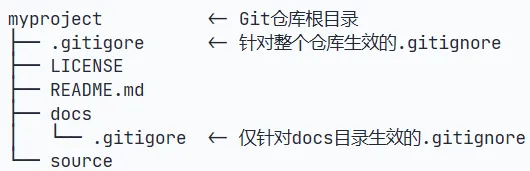
Set Up a Git Server#
GitHub is a free remote repository hosting platform for open-source code. But for some commercial companies that treat source code as life itself, they neither want to open-source their code nor want to pay GitHub for private hosting—so they can only set up their own Git server as a private repository. To set up a Git server you need a Linux machine. Ubuntu or Debian is strongly recommended, because you can finish the installation with just a few simple apt commands. Assume you already have a Linux user account with sudo privileges—let’s begin.
Step 1: install git:
$ sudo apt install gitStep 2: create a git user to run the git service:
$ sudo adduser gitStep 3: set up certificate (SSH key) login:
Collect the public keys of all users who need access (their own id_rsa.pub files). Put all public keys into /home/git/.ssh/authorized_keys, one per line.
Step 4: initialize a Git repository:
Choose a directory for the Git repo; suppose it is /srv/sample.git. In /srv, run:
$ sudo git init --bare sample.gitGit will create a bare repository. A bare repo has no working tree, because the server-side repo is purely for sharing—users should not log into the server and modify a working directory. Server repositories also usually end with .git. Then change the owner to git:
$ sudo chown -R git:git sample.gitStep 5: disable shell login:
For security, the git user should not be allowed to log into a shell. You can do this by editing /etc/passwd. Find a line like:
git:x:1001:1001:,,,:/home/git:/bin/bashChange it to:
git:x:1001:1001:,,,:/home/git:/usr/bin/git-shellNow the git user can use git over SSH, but cannot log into a shell, because git-shell exits immediately after login.
Step 6: clone the remote repository:
Now you can clone it with git clone on each developer’s computer:
$ git clone git@server:/srv/sample.git
Cloning into 'sample'...
warning: You appear to have cloned an empty repository.After that, pushing is straightforward.
Manage Public Keys#
If the team is small, it’s fine to collect everyone’s public keys and put them into /home/git/.ssh/authorized_keys. If the team has hundreds of people, that won’t work. In that case, you can manage keys with Gitosis ↗. I won’t cover Gitosis here—because I don’t know it yet. I’ll come back and study it when I’m managing a team of hundreds.
Manage Permissions#
Some companies/teams/labs treat source code as life, and treat employees as potential thieves, so they set up strict permission control in their version control system—down to each branch or even each directory. Git was developed for hosting Linux source code, so it inherits the open-source community spirit and does not support permission control out of the box. However, because Git supports hooks, you can write server-side scripts to control operations like commits and achieve permission control. Gitolite ↗ is such a tool. I won’t cover Gitolite here either—since it’s just me for now, I don’t need it yet.
Supplement#
When I tried to push projects to the Git server bare repository I set up, I ran into some issues. You can read more ↗ and reference ↗ them. After reading several blog answers, I’m recording the solutions here. My overall understanding is:
The server stores a bare repo (bare), which you can think of as the contents under your repo’s .git/ directory; it does not include a working directory (working space). The fix is to create a post-receive hook under hooks in demo.git and specify the project directory and the git repo path. For example: I created a bare repo tmp.git under /home/git/. In tmp.git/hook (hooks), set the project directory to something like home/git. Then when you push again, you’ll see the pushed files under /home/git/ on the server.